Chapter 2 · Journey step 6
Home: your daily plan
Home is the first screen you see every day. It tells you what to study next, keeps your streak and shows how each subject is going.
- Best for
- Knowing what to study today
- Time
- A minute to check
- Where
- Home tab
- Plan
- Free and Premium
What Home is
Classy builds Home from your syllabus and your weak spots. You don't need to plan anything yourself: open Home, start the mission at the top, and come back tomorrow.
The Home screen
What each numbered part does.
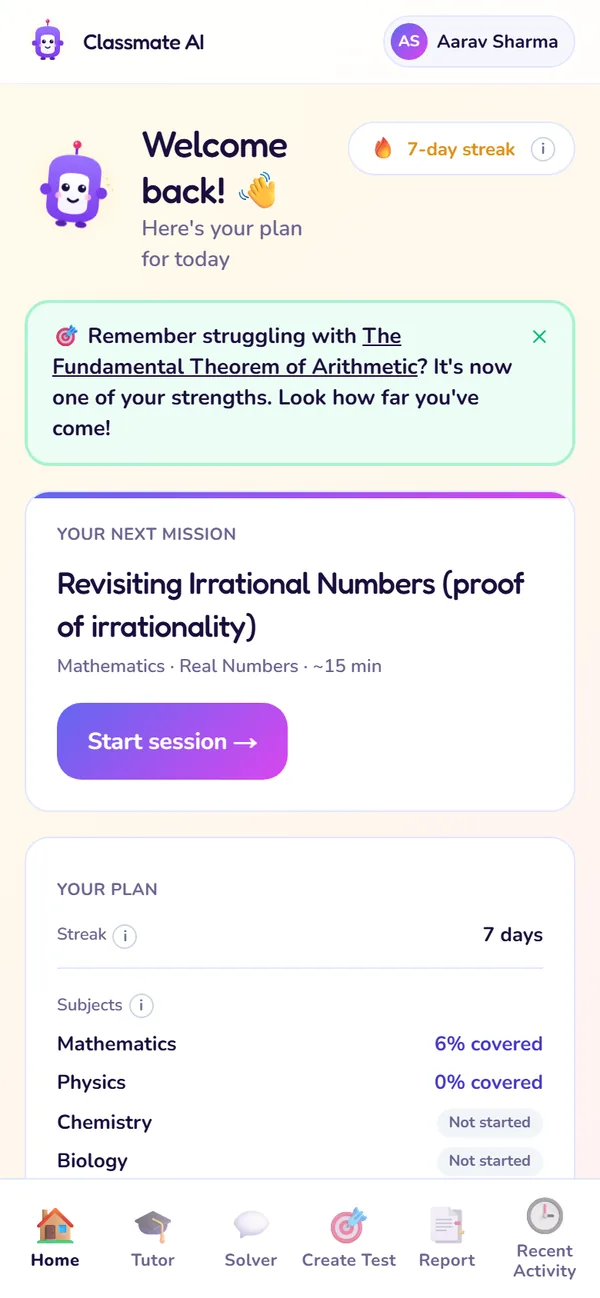
Top of Home
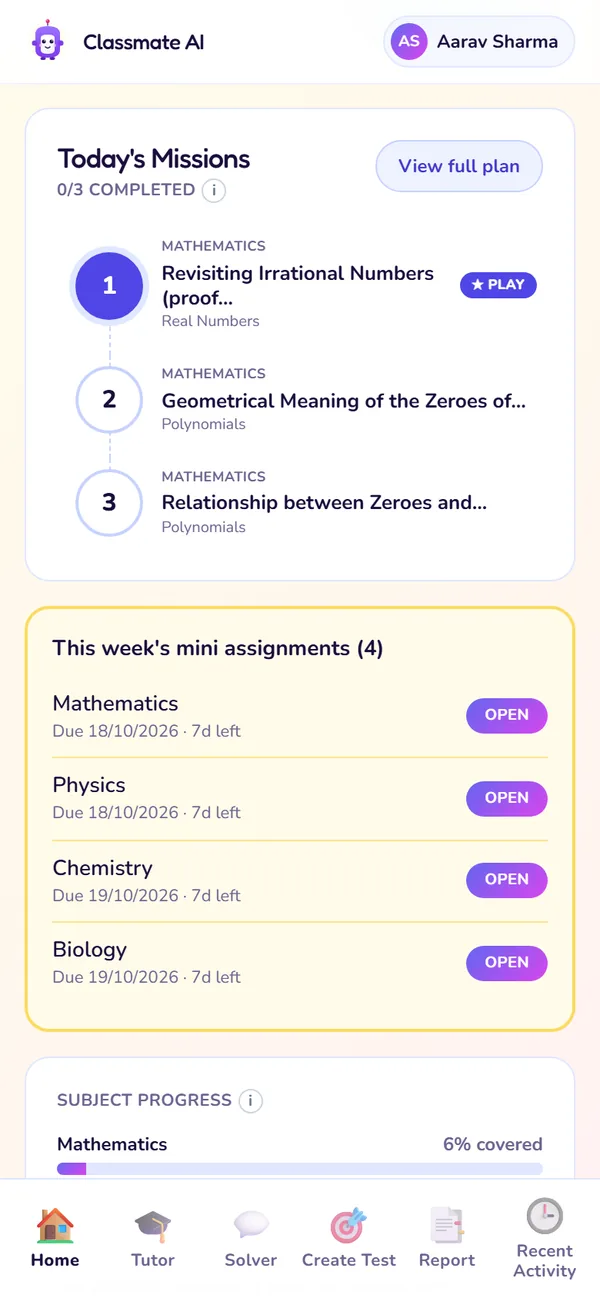
Missions and assignments
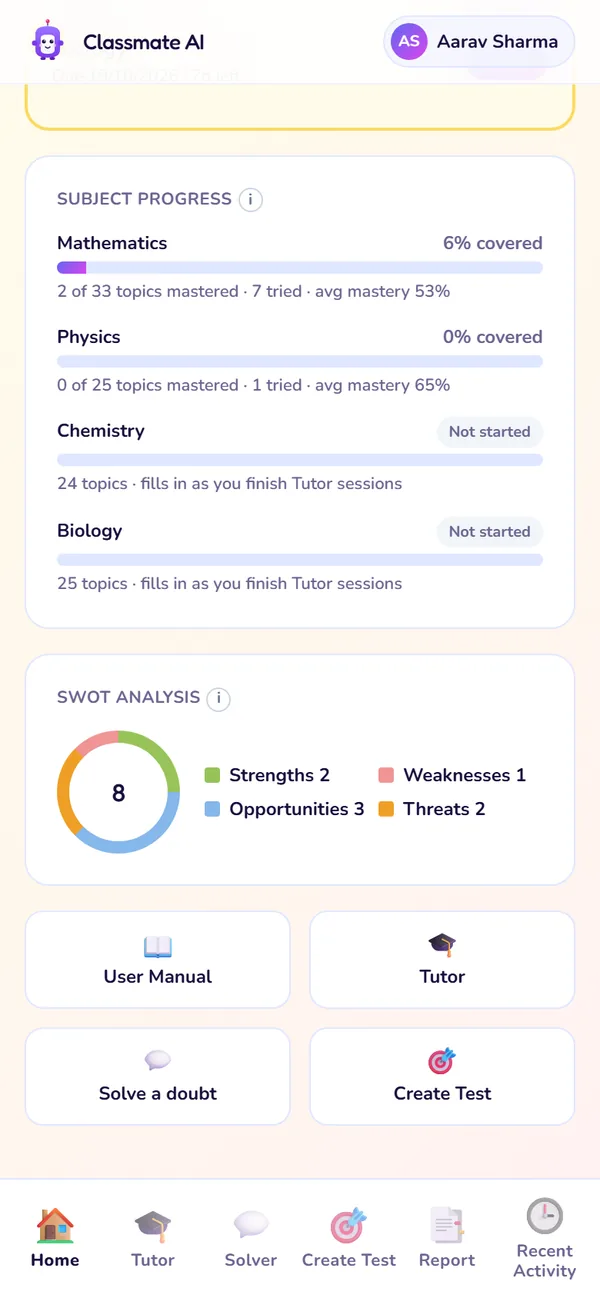
Progress, SWOT, shortcuts
- 1
Streak
The number of days in a row you've studied. One session a day keeps it going.
Use it: Glance at it each morning to keep your run alive.
- 2
Tips from Classy
Short tips, like when a topic you found hard becomes a strength. Tap × to hide one.
Use it: Read them when they show up; they point to what to do next.
- 3
Your next mission
The one concept to learn now, picked from your syllabus and your weak spots. Tap it to go straight into the lesson.
Use it: Not sure what to study? Start here.
- 4
Today's missions
Today's short list of sessions. View full plan shows your whole route to the exam.
Use it: Finish these to stay on track for your board exam.
- 5
Weekly mini assignments
Every week, a 10-question test on your weakest topic in each subject, with a due date.
Use it: Do it once a week to lock in what you learned.
- 6
Subject progress
How much of each subject's syllabus you've mastered, and your average mastery on the topics you've tried.
Use it: To see which subject needs more time this week.
- 7
SWOT ring
Your topics sorted into Strengths, Weaknesses, Opportunities and Threats. Tap it to open your SWOT report.
Use it: Before a test, find your Threats and revise those first.
- 8
Quick actions
Shortcuts to this manual, a Tutor lesson, Solver and Create Test.
Use it: When you already know what you want to do.
A daily routine, step by step
About 20–30 minutes a day is enough to keep moving.
- 1Open the Home tab and check your streak.
- 2Tap Your next mission to start today's lesson (Chapter 3).
- 3Work through the rest of Today's missions if you have time.
- 4Stuck on homework? Use Solve a doubt (Chapter 4).
- 5Once a week, open your mini assignments before their due date.
Today's missions
Missions come from your syllabus, the topics that carry the most marks and the ones you find hard. They change as your SWOT report changes.
| You see | What it means | What to do |
|---|---|---|
| A tick next to a mission | You finished it today. | Move on to the next one. |
| 1/3 completed | How many of today's missions are done. | Finish all three to stay on track. |
| View full plan | Opens Shortest Path, your day-by-day plan to the exam. | Check it when planning your week. |
A tick next to a mission
- What it means
- You finished it today.
- What to do
- Move on to the next one.
1/3 completed
- What it means
- How many of today's missions are done.
- What to do
- Finish all three to stay on track.
View full plan
- What it means
- Opens Shortest Path, your day-by-day plan to the exam.
- What to do
- Check it when planning your week.
Weekly mini assignments
A 10-question multiple-choice test on your weakest topic in each subject, every week. Each one has a due date.
- 1Find This week's mini assignments on Home.
- 2Tap Open next to a subject. The questions are made for you on the spot.
- 3Answer all 10. Your SWOT report updates when you finish.
Your streak
Your streak counts the days in a row you've studied. Any lesson, doubt or question you answer counts. You get one rest day a week: miss a single day and your streak is safe (the chip shows Rest day). Miss two days in the same week and it goes back to 0.
Plan limits on Home
| Free | Premium (and the 7-day trial) | |
|---|---|---|
| Next mission and today's missions | Yes | Yes |
| Weekly mini assignments | Not included | Included |
| Usage meter | This week on Free shows what's left this week | Not shown; Premium is unlimited |
Next mission and today's missions
- Free
- Yes
- Premium (and the 7-day trial)
- Yes
Weekly mini assignments
- Free
- Not included
- Premium (and the 7-day trial)
- Included
Usage meter
- Free
- This week on Free shows what's left this week
- Premium (and the 7-day trial)
- Not shown; Premium is unlimited
Questions about Home
Why does Home say "Finish your baseline" instead of a mission?
Can I skip today's missions?
Why does a subject say Not started?
Still stuck?
Check Troubleshooting & FAQ, or write to us at contact@classmateai.in.
Was this page helpful? ·