Chapter 5 · Journey step 9
Create Test and My Tests
Build a timed multiple-choice test from the chapters you pick, play it, and replay it later to beat your score. Every test you make is saved in My Tests.
- Best for
- Checking yourself before a test
- Time per test
- 5–15 min
- Where
- Create Test tab
- Plan
- Free: 2 a week
Build a test in 3 steps
What each numbered part of the builder does.
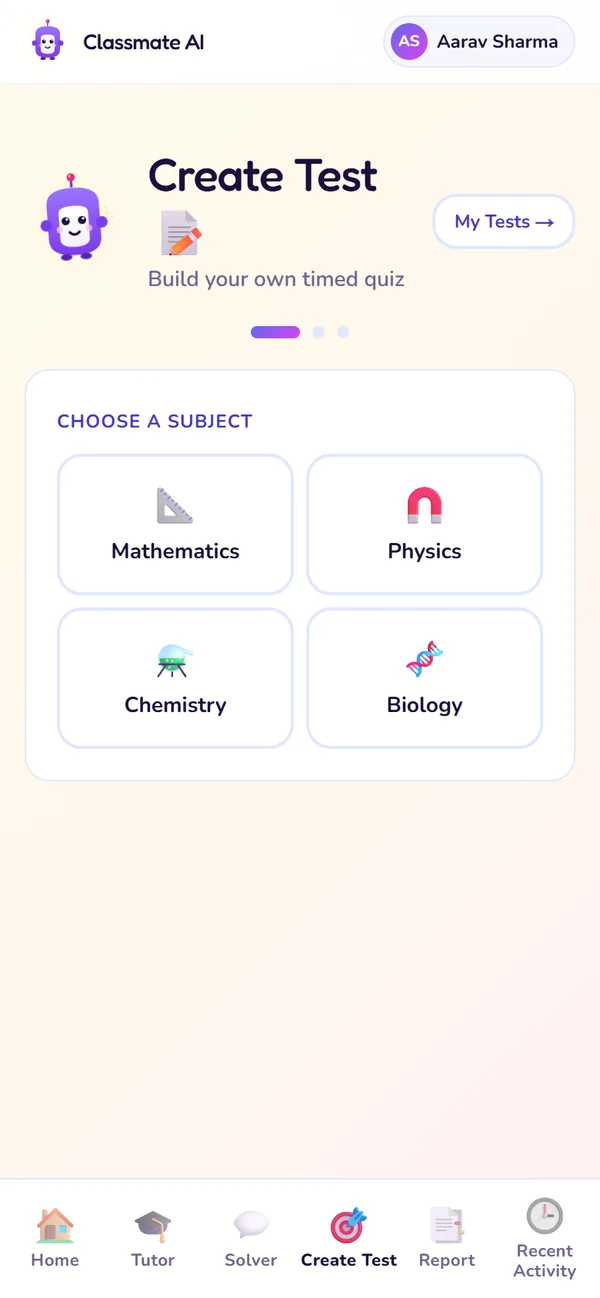
Step 1: subject
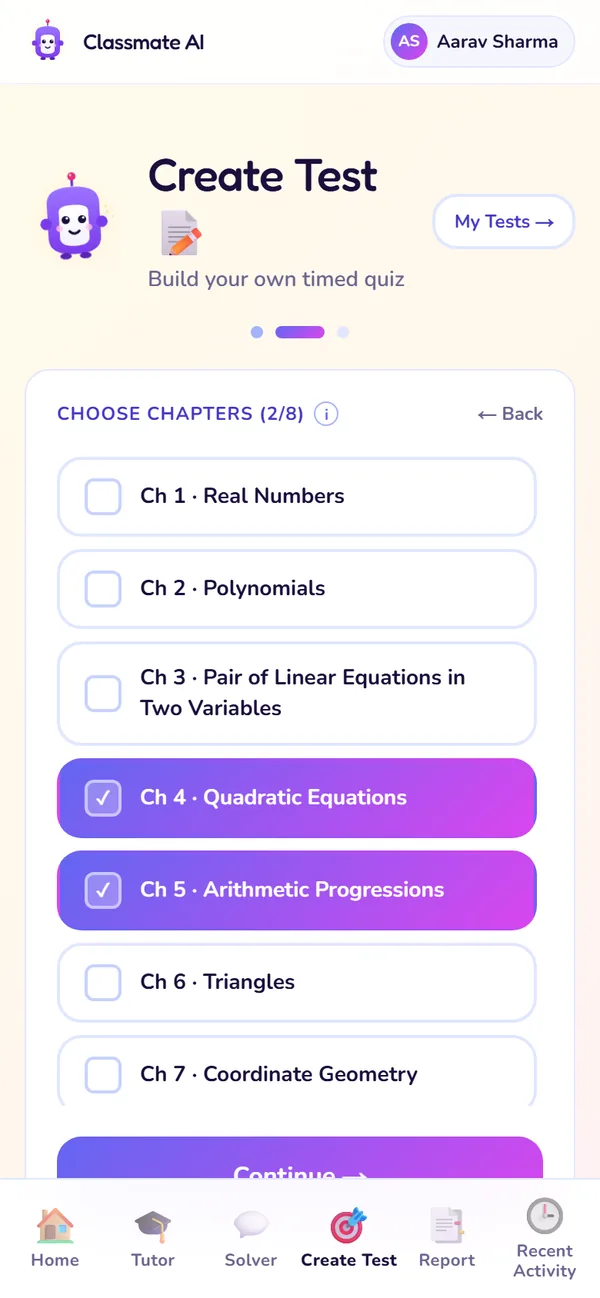
Step 2: chapters
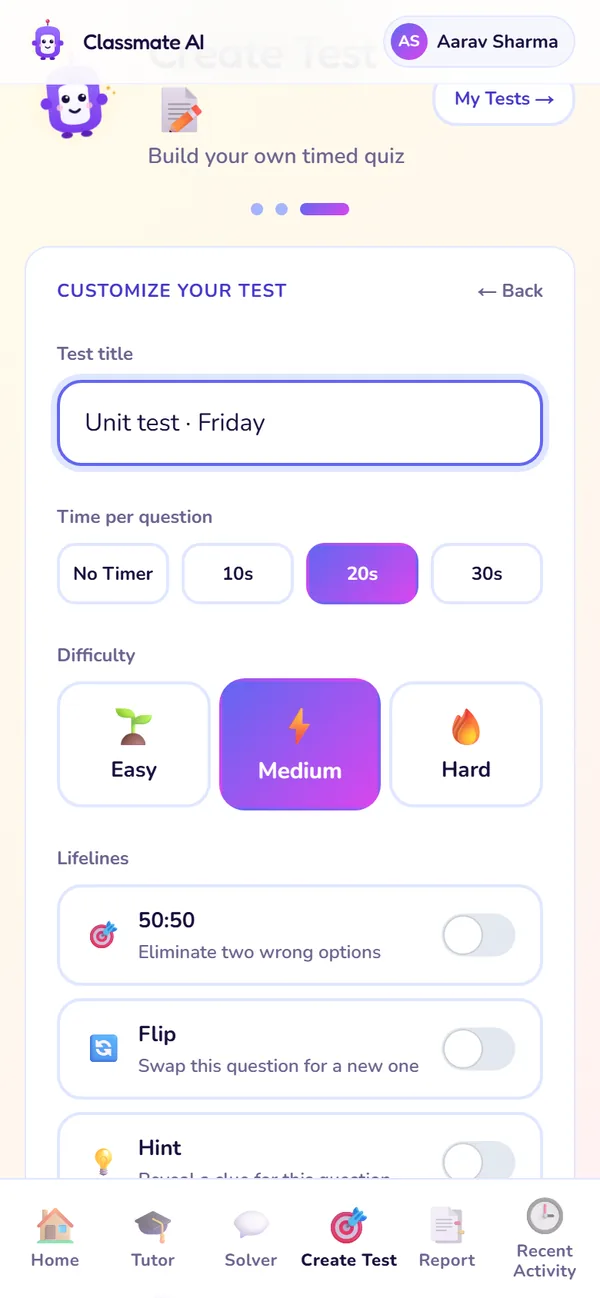
Step 3: customise
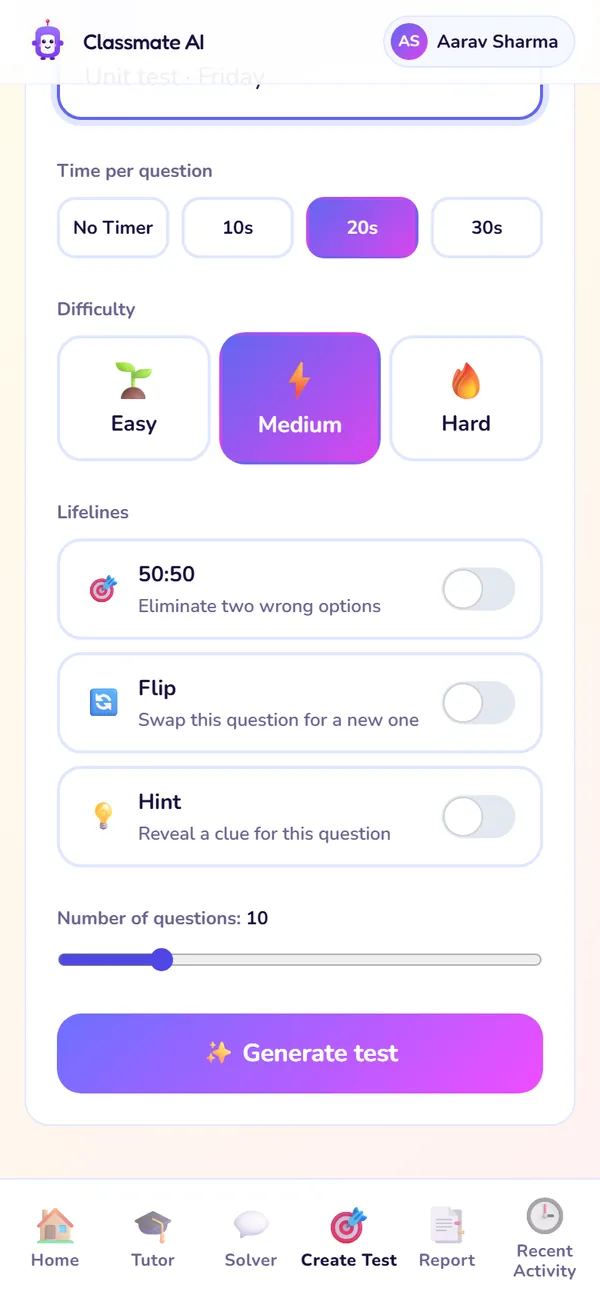
Lifelines and Generate
- 1
Step 1: subject
Pick the subject for your test.
Use it: Before a school test or unit test.
- 2
Step 2: chapters
Choose the chapters to include (up to 8), then tap Continue.
Use it: Match the chapters in your next school test.
- 3
Step 3: customise
Name the test, then set the time per question (10, 20 or 30 seconds, or no timer), the difficulty and how many questions (5–30).
Use it: Use a timer to practise exam speed.
- 4
Lifelines
Turn on 50:50, Flip and Hint for this test.
Use it: Turn them off for a tougher, exam-like test.
- 5
Generate test
Classy builds your test in a few seconds and saves it to My Tests.
Use it: When your settings are ready.
Lifelines
Each lifeline works once per test.
| Lifeline | What it does | Use it when |
|---|---|---|
| 50:50 | Removes two wrong options. | You've narrowed it to two but can't decide. |
| Flip | Swaps in a different question. | The question is on something you haven't studied yet. |
| Hint | Gives a clue, not the answer. | You know the topic but can't see where to start. |
50:50
- What it does
- Removes two wrong options.
- Use it when
- You've narrowed it to two but can't decide.
Flip
- What it does
- Swaps in a different question.
- Use it when
- The question is on something you haven't studied yet.
Hint
- What it does
- Gives a clue, not the answer.
- Use it when
- You know the topic but can't see where to start.
Playing a test, step by step
- 1Read the question. If the test has a timer, the countdown shows at the top.
- 2Pick an option.
- 3Tap Confirm Answer to lock it in. You see straight away whether it's right, with the solution.
- 4Move to the next question. Use a lifeline if you're really stuck.
Results
At the end you see your score for the whole test. Tap Play again to beat it, or Back to My Tests. Your answers also update your Report and SWOT, just like a lesson does.
My Tests
Every test you've made, in one list.
- 1Open Create Test, then My Tests.
- 2Search by name, or sort by recent or most played.
- 3Tap a test to play it again.
Plan limits for Create Test
| Free | Premium (and the 7-day trial) | |
|---|---|---|
| New tests | 2 a week, shared with practice sets; reset Monday 12:00 AM IST | Unlimited (daily fair use) |
| Replaying a saved test | Free | Free |
| My Tests | Yes | Yes |
New tests
- Free
- 2 a week, shared with practice sets; reset Monday 12:00 AM IST
- Premium (and the 7-day trial)
- Unlimited (daily fair use)
Replaying a saved test
- Free
- Free
- Premium (and the 7-day trial)
- Free
My Tests
- Free
- Yes
- Premium (and the 7-day trial)
- Yes
Questions about Create Test
Can I mix chapters from different subjects?
Are the questions the same every time I replay?
Does a test count towards my SWOT report?
Still stuck?
Check Troubleshooting & FAQ, or write to us at contact@classmateai.in.
Was this page helpful? ·